As an Amazon Associate, we earn from qualifying purchases. Some links on this site are affiliate links at no extra cost to you. Our recommendations are based on thorough research and editorial judgment.

How Do I Sync My GPS Watch With Running Apps?

To sync your GPS watch with running apps, start by charging and powering on your device. Next, download an app like Garmin Connect or Strava on your smartphone, and enable Bluetooth. Open the app, navigate to “Apps and Devices,” and search for your GPS watch. Finally, initiate data syncing for metrics like heart rate and distance. It really helps you track your performance more accurately, and there’s more useful info to explore!
Key Takeaways
- Ensure your GPS watch is charged and powered on before attempting to sync with the app.
- Install the appropriate running app, such as Garmin Connect or Strava, on your smartphone.
- Enable Bluetooth on your smartphone to establish a connection with the GPS watch.
- Open the app, navigate to “Apps and Devices,” and search for your GPS watch to initiate syncing.
- Upon connection, allow data syncing to share metrics like heart rate, distance, and pace with the app.
Popular GPS Watch Brands Compatible With Running Apps
When it comes to choosing a GPS watch compatible with running apps, several popular brands stand out for their features and performance. Garmin watches excel with seamless Garmin integration, offering compatibility with apps like Strava and TrainingPeaks. They have a range of products, from the budget-friendly Forerunner to the elite Fenix series, ensuring options for all levels of athletes. On the other hand, Apple Watch compatibility means you can easily sync your data with Apple Fitness+ and other third-party applications, but you’ll need an iPhone for full functionality. Prices for Garmin watches typically range from $199 to $899, while Apple Watches can start around $399. Ultimately, the choice depends on your specific running needs and tech preferences. Additionally, many Garmin models provide advanced tracking capabilities that enhance your training experience and performance analysis.
Step-by-Step Guide to Syncing Your GPS Watch

Syncing your GPS watch with a running app is easier than you might think, and following a step-by-step process can make it a breeze. First, verify your GPS watch is charged and powered on, then install the running app like Garmin Connect or Strava on your smartphone. After logging in, enable Bluetooth to facilitate connection. Open the app, go to “Apps and Devices,” and initiate a device search to find your GPS watch. Once it appears, select it to begin pairing. Follow the on-screen prompts, verifying both devices stay close. After pairing, initiate data syncing through the app, confirming the transfer of essential metrics like heart rate and distance. Additionally, ensure that your GPS watch supports built-in GPS accuracy for reliable tracking while running. Voila! You’ve mastered some basic syncing techniques and device compatibility.
Types of Data Shared Between GPS Watches and Apps

Having successfully paired your GPS watch with a running app, it’s important to understand the types of data these devices share. You’ll find that route tracking data, including GPS coordinates and paths, helps map your runs. Also, the watch tracks your pace, speed, and distance covered, all useful for performance analysis. This includes elevation gain, heart rate, and even cadence metrics. The details don’t stop there; you’ll also receive lap splits, calories burned, and time stamps. Just remember to contemplate data privacy when sharing this information with apps. Plus, your watch can sync device status data, ensuring you’re always running with the latest updates and ideal settings. It’s like having a personal coach on your wrist, minus the whistle! Additionally, the watch’s multi-constellation support ensures enhanced GPS accuracy for better tracking during your runs.
Troubleshooting Common Sync Issues
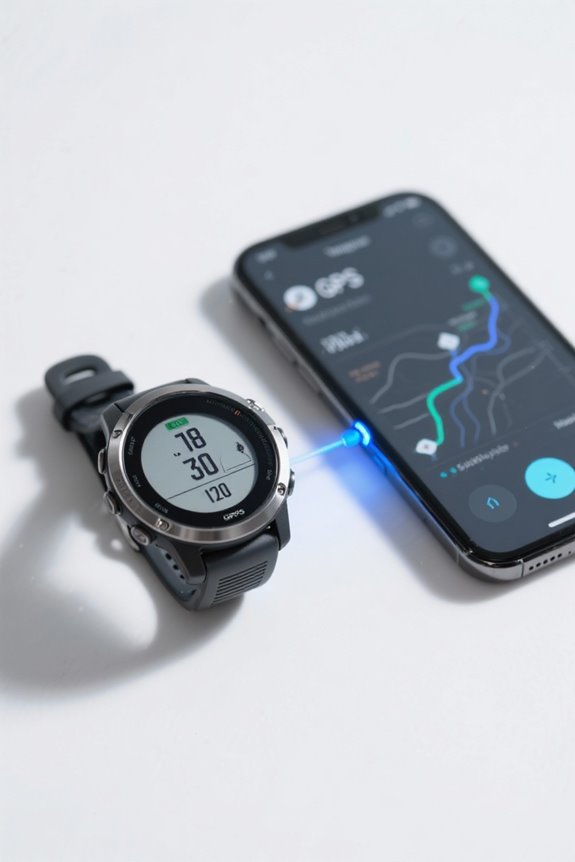
Sync issues can be frustrating, especially when you’re enthusiastic to track your latest run. First, check for any sync error messages on your GPS watch or the app; these can offer clues to the problem. If you’re facing connection issues, try restarting both your watch and smartphone, as this simple step often resolves glitches. Remember to guarantee that your app permissions are correctly set to allow syncing. If you’re still having trouble, toggle your Bluetooth settings off and back on, or disconnect and reconnect the GPS device in your app. Updating the firmware and the app can also prevent incompatibility issues. Additionally, consider wearing shin splint sleeves during your runs, as they can help improve blood circulation and reduce muscle fatigue. And hey, if you’re still stuck, a little patience goes a long way—sometimes, servers need time to catch up!
Advantages of Syncing Your GPS Watch With Running Apps

One undeniable advantage of linking your GPS watch with running apps is the wealth of data and insights it provides. By receiving real-time data like distance, pace, and heart rate, I can make immediate adjustments, enhancing my performance. It’s incredible how syncing allows me to monitor my progress over time, spotting trends and plateaus that help shape my training plans. Plus, those virtual pacers in apps really pump up my user motivation—I’m always enthusiastic to outdo my last run. With safety features like live location sharing and automatic data uploads, I’m simplifying my tracking efforts while avoiding mishaps. This synchronization not only keeps me engaged, but also transforms my running experience into a journey of consistent improvement! Additionally, many models of TomTom GPS watches offer advanced metrics for athlete training, providing tailored insights that further enhance my performance.
Best Running Apps for GPS Watch Integration
When it comes to finding the right running app for your GPS watch, options abound, each offering unique features and benefits. Garmin Connect stands out for its thorough fitness tracking features, providing detailed insights into your running dynamics and VO2 max estimates—perfect for serious athletes. Strava shines with social elements, letting you compete on leaderboards, while MapMyRun helps you discover over 70 million pre-mapped routes. Runkeeper offers excellent multi-device support, syncing your workout history across platforms. If you’re into gamified experiences, consider Zwift for virtual running courses. For those needing treadmill workouts, iFIT integrates real-time metrics beautifully. Additionally, many of these apps can sync with your GPS watch’s health tracking features, allowing for a more comprehensive view of your fitness journey. Look through some running app reviews to find the best fit; you’ll appreciate the specific features each app offers.
Frequently Asked Questions
Can I Sync Multiple GPS Watches With the Same App?
Yes, I can sync multiple GPS watches with the same app, but I’ve learned about multi-device compatibility and that watch app restrictions often limit which device can actively sync data at any given time.
How Often Should I Sync My GPS Watch With the App?
To keep my fitness journey seamless, I sync my GPS watch daily, ensuring data accuracy and fresh metrics. Regular sync frequency is like tuning a musical instrument; it keeps my performance harmonized and on track.
Will Syncing Delete Any Data From My GPS Watch?
Syncing usually won’t delete any data from my GPS watch, but I always back up my data first. I recommend syncing regularly to guarantee everything’s updated, keeping an eye out for any inconsistencies.
Do I Need a Wi-Fi Connection to Sync My Watch?
No, you don’t need a Wi-Fi connection to sync your watch. I usually rely on a Bluetooth connection, which works just fine for transferring my workout data without the complications Wi-Fi alternatives might bring.
Can I Sync My GPS Watch With Multiple Running Apps?
Yes, I can sync my GPS watch with multiple running apps, but there’re syncing limitations and app compatibility issues to reflect on. Some data might not transfer seamlessly, depending on the apps I connect.


